
Setting Up SAP SuccessFactors Story Reports: A Step-by-Step Guide
SAP SuccessFactors Story Reporting is a modern HR reporting solution that provides interactive, visual, and real-time analytics. It empowers users to create dynamic reports with rich visualizations. The licensing overview states that Story Reporting is included with SAP SuccessFactors Employee Central, but Workforce Analytics and SAP Analytics Cloud require separate licenses. Pre-requisites for Story Reports include activating 'Stories in People Analytics', configuring Identity Authentication Service and Identity Provisioning Service, and ensuring user sync from SAP SuccessFactors HCM Suite to SAP Analytics Cloud. The article provides a step-by-step guide on how to develop a Story Report, including selecting a database, naming the database, and configuring settings for Role-Based Permission (RBP).
SAP SuccessFactors Story Reporting is a cutting-edge HR reporting solution that transforms traditional HR reporting into interactive, visual, and real-time analytics. This tool empowers users to create dynamic reports with rich visualizations, providing valuable insights into workforce data [1].Licensing Overview
Story Reporting is included with SAP SuccessFactors Employee Central, making it accessible to users without additional licensing costs. However, for more advanced analytics, separate licenses for Workforce Analytics (WFA) and SAP Analytics Cloud (SAC) are required. Live payroll data reporting is not supported in Story Reports, necessitating third-party tools like Query Manager for such needs [1].
Pre-requisites for Story Reports
To set up Story Reports, several pre-requisites must be met. First, users must activate 'Stories in People Analytics' in the Upgrade Center. Additionally, Identity Authentication Service (IAS) and Identity Provisioning Service (IPS) need to be configured. User sync from SAP SuccessFactors HCM Suite to SAP Analytics Cloud (SAC) via IPS is essential for successful implementation [1].
Developing a Story Report
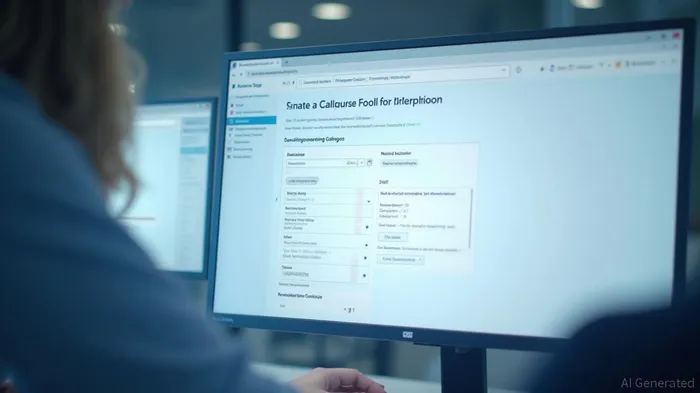
Creating a Story Report involves several steps. Users start by selecting a database, such as 'Job Information' and 'Personal Information', and choose the columns they need. The system then prompts for the start or effective date to reflect the data in the report. Naming the database and configuring settings for Role-Based Permission (RBP) are crucial steps to ensure proper access and management of the report [1].
Common Issues and Fixes
Several common issues can arise during the setup and usage of Story Reports. Users must ensure their information is successfully synchronized to the SAP Analytics Cloud instance and assigned the appropriate RBP access. When issues occur, such as a blank loading screen or errors, troubleshooting tools like SACDuplicateEmailValidationCheck and SACUserValidationCheckWithQuickFix can help identify and resolve problems [1].
Conclusion
SAP SuccessFactors Story Reporting offers a modern and interactive approach to HR reporting. By following the outlined steps and addressing common issues, organizations can leverage this tool to gain valuable insights into their workforce data. For more detailed guidance, refer to the complete guide on setting up Story Reports in SAP SuccessFactors [1].
References:
[1] https://community.sap.com/t5/human-capital-management-blog-posts-by-members/complete-guide-to-setting-up-story-reports-in-sap-successfactors/ba-p/14206175
Stay ahead of the market.
Get curated U.S. market news, insights and key dates delivered to your inbox.


AInvest
PRO
AInvest
PRO



Comments
No comments yet