
SAP EWM Stock Upload: A Step-by-Step Guide
ByAinvest
Wednesday, Jul 23, 2025 6:05 am ET1min read
SAP--
Performing a Stock Upload in SAP EWM
1. Navigate to the Stock Data Transfer Screen:
Begin by accessing the Stock Data Transfer screen in SAP EWM. This screen serves as the primary interface for uploading stock data.
2. Select the Input File:
Locate and select the input file containing the stock data that you wish to upload. This file typically includes material codes, quantities, and other relevant information.
3. Upload the Data:
Once the input file is selected, proceed to upload the data. This action will populate the Stock Data Transfer screen with the information from the file.
4. Verify and Execute:
After uploading, review the data displayed on the screen to ensure accuracy. Click the Execute button to process the stock upload. This action will automatically create a Warehouse Task (WT) for the uploaded stock.
5. Verify the Uploaded Material and Quantity:
To verify the uploaded material and quantity, use the transaction code /N/SCWM/MON. This transaction allows you to review and confirm the details of the stock upload.
6. Posting the Stock into the ERP System:
The movement type 561 is triggered to post the stock into the ERP system. This integration ensures that the stock data is accurately reflected in the ERP system. You can verify the posting in transaction MB51.
Conclusion
By following these steps, users can efficiently perform stock uploads in SAP EWM, ensuring accurate and up-to-date inventory records. The integration with ERP systems through movement type 561 further enhances the reliability of the data, facilitating smoother operations and better decision-making.
References:
[1] https://learning.sap.com/courses/advanced-customizing-in-sap-s-4hana-ewm/managing-shipping-and-receiving
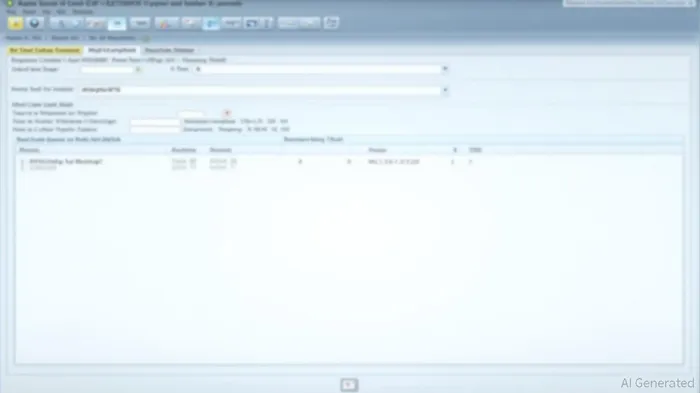
This article describes the steps to perform a stock upload in SAP EWM using the transaction code /N/SCWM/ISU. The process involves navigating to the Stock Data Transfer screen, selecting the input file, and uploading the data. After uploading, the data will be displayed, and the user can click the Execute button to process the stock upload. A Warehouse Task will be automatically created for the uploaded stock, and the user can verify the uploaded material and quantity using transaction /N/SCWM/MON. The movement type 561 is triggered to post the stock into the ERP system, which can be verified in transaction MB51.
In the realm of supply chain management, SAP Extended Warehouse Management (EWM) plays a pivotal role in optimizing logistics operations. One critical aspect of EWM is the efficient handling of stock uploads, which can significantly enhance inventory accuracy and operational efficiency. This article outlines the steps to perform a stock upload in SAP EWM using the transaction code /N/SCWM/ISU.Performing a Stock Upload in SAP EWM
1. Navigate to the Stock Data Transfer Screen:
Begin by accessing the Stock Data Transfer screen in SAP EWM. This screen serves as the primary interface for uploading stock data.
2. Select the Input File:
Locate and select the input file containing the stock data that you wish to upload. This file typically includes material codes, quantities, and other relevant information.
3. Upload the Data:
Once the input file is selected, proceed to upload the data. This action will populate the Stock Data Transfer screen with the information from the file.
4. Verify and Execute:
After uploading, review the data displayed on the screen to ensure accuracy. Click the Execute button to process the stock upload. This action will automatically create a Warehouse Task (WT) for the uploaded stock.
5. Verify the Uploaded Material and Quantity:
To verify the uploaded material and quantity, use the transaction code /N/SCWM/MON. This transaction allows you to review and confirm the details of the stock upload.
6. Posting the Stock into the ERP System:
The movement type 561 is triggered to post the stock into the ERP system. This integration ensures that the stock data is accurately reflected in the ERP system. You can verify the posting in transaction MB51.
Conclusion
By following these steps, users can efficiently perform stock uploads in SAP EWM, ensuring accurate and up-to-date inventory records. The integration with ERP systems through movement type 561 further enhances the reliability of the data, facilitating smoother operations and better decision-making.
References:
[1] https://learning.sap.com/courses/advanced-customizing-in-sap-s-4hana-ewm/managing-shipping-and-receiving
Stay ahead of the market.
Get curated U.S. market news, insights and key dates delivered to your inbox.
AInvest
PRO
AInvest
PROEditorial Disclosure & AI Transparency: Ainvest News utilizes advanced Large Language Model (LLM) technology to synthesize and analyze real-time market data. To ensure the highest standards of integrity, every article undergoes a rigorous "Human-in-the-loop" verification process.
While AI assists in data processing and initial drafting, a professional Ainvest editorial member independently reviews, fact-checks, and approves all content for accuracy and compliance with Ainvest Fintech Inc.’s editorial standards. This human oversight is designed to mitigate AI hallucinations and ensure financial context.
Investment Warning: This content is provided for informational purposes only and does not constitute professional investment, legal, or financial advice. Markets involve inherent risks. Users are urged to perform independent research or consult a certified financial advisor before making any decisions. Ainvest Fintech Inc. disclaims all liability for actions taken based on this information. Found an error?Report an Issue




Comments
No comments yet