Ainvest offers multiple ways to display the options chain on the web, letting you choose the layout that best fits your workflow. This article explains each view mode, organization option, and sort setting, along with how the mobile layout works.
Where to Find It
- Web: Navigate to
https://www.ainvest.com/options/{TICKER}/and select the Option Chain tab. For ETFs, usehttps://www.ainvest.com/etfs/{TICKER}/options/. View controls appear above the chain alongside the filter controls.
- Mobile: The mobile chain uses a fixed layout. There is no view toggle on mobile.
Web Views
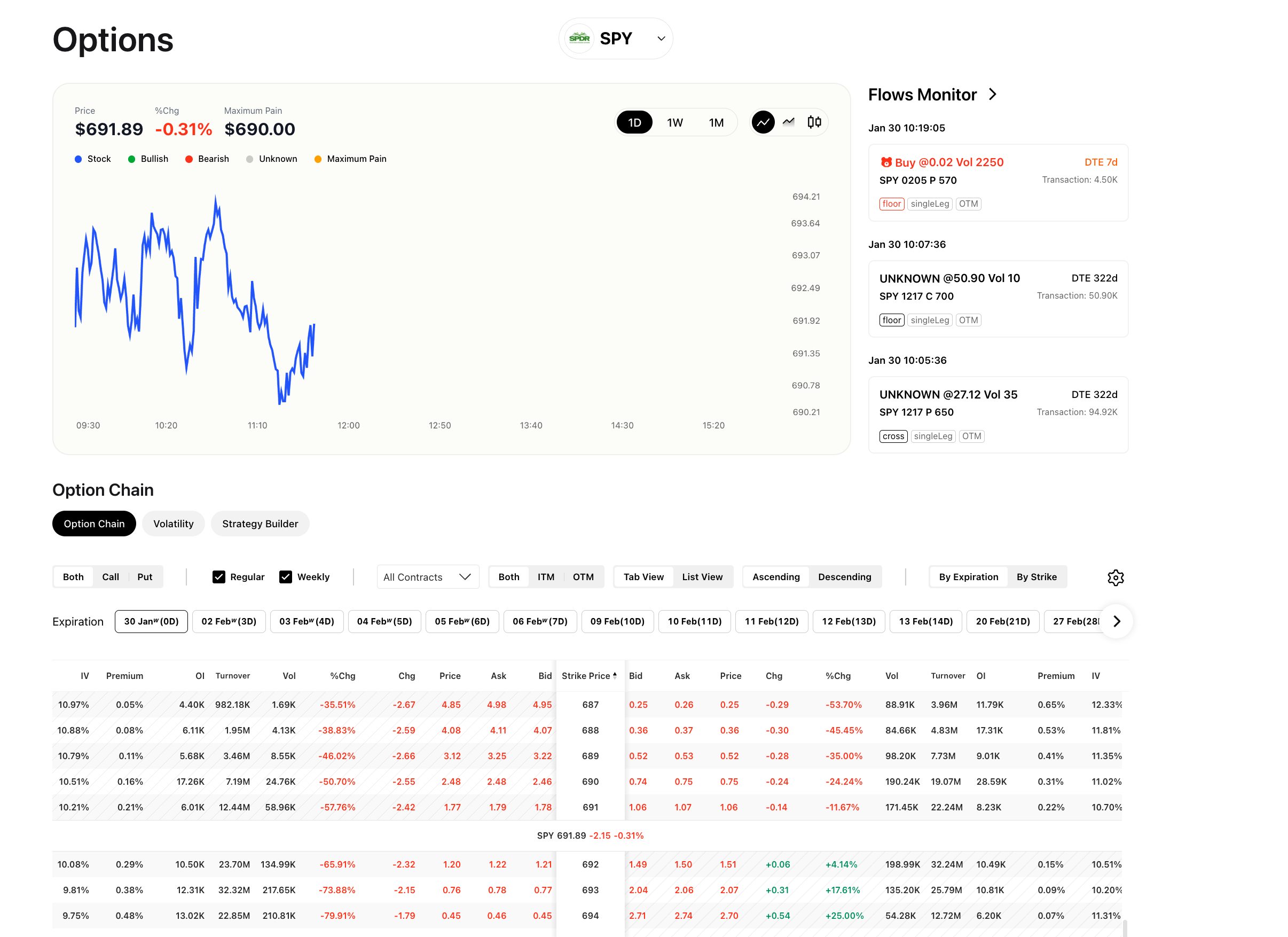
Web option chain showing Tab View and List View toggle along with filter controls at the top of the chain
The web interface provides two distinct view modes. Toggle between them using the Tab View / List View control at the top of the chain.
Tab View
Tab View groups contracts into tabbed sections by expiration date. Each tab represents one expiration. Click a tab to load all available strikes for that date.
Best for: Focused analysis of a single expiration. If you already know which expiration you want to trade, Tab View keeps the display clean by showing only one date at a time.
List View
List View displays all contracts in a continuous, scrollable list. Every expiration and strike combination is visible without switching tabs.
Best for: Scanning across multiple expirations quickly. If you want to compare how premiums change from one expiration to the next without clicking between tabs, List View gives you that at-a-glance perspective.
Organization Modes (Web)
Independent of the view mode, you can choose how contracts are grouped.
By Expiration (Default)
Contracts are grouped by expiration date first. Within each expiration group, strikes are listed in order. This is the default and the most common way to browse the chain.
Best for: Targeting a specific expiration date. You see all strikes available for that date in one block, making it easy to compare premiums, volume, and open interest across the full range of strikes.
By Strike
Contracts are grouped by strike price first. For each strike, the available expirations are listed underneath.
Best for: Targeting a specific price level. If you believe the underlying will reach a particular price and you want to compare how time value differs across expiration dates for that exact strike, this mode puts all the relevant data in one place.
Sort Order
Both organization modes support ascending and descending sort:
Ascending: Strikes are listed from lowest to highest. In By Expiration mode, the nearest expiration appears first. This is the default.
Descending: Strikes are listed from highest to lowest. In By Expiration mode, the furthest expiration appears first.
Mobile Layout
The mobile options chain uses a fixed layout that cannot be changed:
Single-column display: Contracts are shown in a single list, one expiration at a time.
Expiration tabs: A row of tabs across the top of the screen shows available expiration dates. Tap a tab to switch. Swipe the tab bar left or right to reveal additional dates.
No Tab/List toggle: The mobile chain always behaves like Tab View -- one expiration at a time.
No By Strike mode: Mobile always organizes by expiration.
The mobile layout prioritizes simplicity and speed. For advanced view switching and organization options, use the web interface.
Tips for Choosing the Right Layout
Tab View + By Expiration: The default combination. Use it when you want to focus on one expiration date and evaluate strikes within it. This is the most common workflow for selecting a single contract to trade.
List View + By Expiration: Use it when you want to scroll through multiple expirations in sequence without clicking tabs. Helpful for getting a broad sense of how premiums evolve over time.
Tab View + By Strike: Use it when you have a price target and want to see all available expirations for that strike in a focused view.
List View + By Strike: Use it when you want to scroll through multiple strikes and see the full expiration spectrum for each one. This is the most data-dense view and is best suited for advanced analysis.
On mobile, use the expiration tabs to quickly compare the same strike across nearby dates by tapping through consecutive tabs and noting how the bid and ask change.
Try it on Ainvest: Open the Option Chain — switch between views and layouts with live data.