
SAP EWM Stock Upload: A Step-by-Step Guide
PorAinvest
miércoles, 23 de julio de 2025, 6:05 am ET1 min de lectura
SAP--
Performing a Stock Upload in SAP EWM
1. Navigate to the Stock Data Transfer Screen:
Begin by accessing the Stock Data Transfer screen in SAP EWM. This screen serves as the primary interface for uploading stock data.
2. Select the Input File:
Locate and select the input file containing the stock data that you wish to upload. This file typically includes material codes, quantities, and other relevant information.
3. Upload the Data:
Once the input file is selected, proceed to upload the data. This action will populate the Stock Data Transfer screen with the information from the file.
4. Verify and Execute:
After uploading, review the data displayed on the screen to ensure accuracy. Click the Execute button to process the stock upload. This action will automatically create a Warehouse Task (WT) for the uploaded stock.
5. Verify the Uploaded Material and Quantity:
To verify the uploaded material and quantity, use the transaction code /N/SCWM/MON. This transaction allows you to review and confirm the details of the stock upload.
6. Posting the Stock into the ERP System:
The movement type 561 is triggered to post the stock into the ERP system. This integration ensures that the stock data is accurately reflected in the ERP system. You can verify the posting in transaction MB51.
Conclusion
By following these steps, users can efficiently perform stock uploads in SAP EWM, ensuring accurate and up-to-date inventory records. The integration with ERP systems through movement type 561 further enhances the reliability of the data, facilitating smoother operations and better decision-making.
References:
[1] https://learning.sap.com/courses/advanced-customizing-in-sap-s-4hana-ewm/managing-shipping-and-receiving
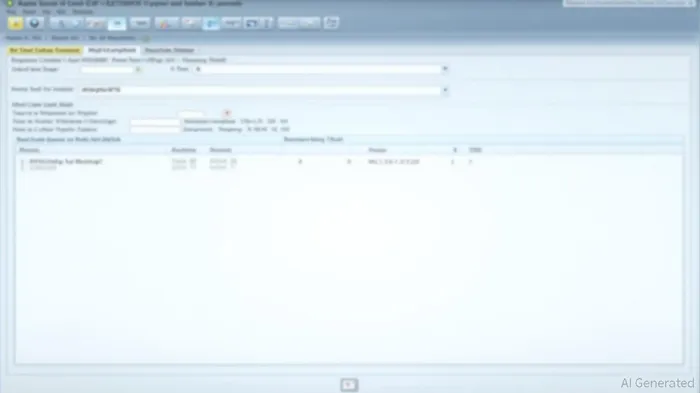
This article describes the steps to perform a stock upload in SAP EWM using the transaction code /N/SCWM/ISU. The process involves navigating to the Stock Data Transfer screen, selecting the input file, and uploading the data. After uploading, the data will be displayed, and the user can click the Execute button to process the stock upload. A Warehouse Task will be automatically created for the uploaded stock, and the user can verify the uploaded material and quantity using transaction /N/SCWM/MON. The movement type 561 is triggered to post the stock into the ERP system, which can be verified in transaction MB51.
In the realm of supply chain management, SAP Extended Warehouse Management (EWM) plays a pivotal role in optimizing logistics operations. One critical aspect of EWM is the efficient handling of stock uploads, which can significantly enhance inventory accuracy and operational efficiency. This article outlines the steps to perform a stock upload in SAP EWM using the transaction code /N/SCWM/ISU.Performing a Stock Upload in SAP EWM
1. Navigate to the Stock Data Transfer Screen:
Begin by accessing the Stock Data Transfer screen in SAP EWM. This screen serves as the primary interface for uploading stock data.
2. Select the Input File:
Locate and select the input file containing the stock data that you wish to upload. This file typically includes material codes, quantities, and other relevant information.
3. Upload the Data:
Once the input file is selected, proceed to upload the data. This action will populate the Stock Data Transfer screen with the information from the file.
4. Verify and Execute:
After uploading, review the data displayed on the screen to ensure accuracy. Click the Execute button to process the stock upload. This action will automatically create a Warehouse Task (WT) for the uploaded stock.
5. Verify the Uploaded Material and Quantity:
To verify the uploaded material and quantity, use the transaction code /N/SCWM/MON. This transaction allows you to review and confirm the details of the stock upload.
6. Posting the Stock into the ERP System:
The movement type 561 is triggered to post the stock into the ERP system. This integration ensures that the stock data is accurately reflected in the ERP system. You can verify the posting in transaction MB51.
Conclusion
By following these steps, users can efficiently perform stock uploads in SAP EWM, ensuring accurate and up-to-date inventory records. The integration with ERP systems through movement type 561 further enhances the reliability of the data, facilitating smoother operations and better decision-making.
References:
[1] https://learning.sap.com/courses/advanced-customizing-in-sap-s-4hana-ewm/managing-shipping-and-receiving


Divulgación editorial y transparencia de la IA: Ainvest News utiliza tecnología avanzada de Modelos de Lenguaje Largo (LLM) para sintetizar y analizar datos de mercado en tiempo real. Para garantizar los más altos estándares de integridad, cada artículo se somete a un riguroso proceso de verificación con participación humana.
Mientras la IA asiste en el procesamiento de datos y la redacción inicial, un miembro editorial profesional de Ainvest revisa, verifica y aprueba de forma independiente todo el contenido para garantizar su precisión y cumplimiento con los estándares editoriales de Ainvest Fintech Inc. Esta supervisión humana está diseñada para mitigar las alucinaciones de la IA y garantizar el contexto financiero.
Advertencia sobre inversiones: Este contenido se proporciona únicamente con fines informativos y no constituye asesoramiento profesional de inversión, legal o financiero. Los mercados conllevan riesgos inherentes. Se recomienda a los usuarios que realicen una investigación independiente o consulten a un asesor financiero certificado antes de tomar cualquier decisión. Ainvest Fintech Inc. se exime de toda responsabilidad por las acciones tomadas con base en esta información. ¿Encontró un error? Reportar un problema


SOBRE NOSOTROS
Nuestra historiaAutores de noticiasBase de conocimientosPolítica de privacidadTérmino de usoDescargo de responsabilidad de corretaje de tercerosTérminos de uso de AIMEDivulgaciones de riesgos de AInvest AICarrerasCONTÁCTENOS
Email: support@ainvest.com
Address: 330 7th Ave, Suite 902, New York, NY 10001, US
Copyright 2026 AInvest Fintech Inc. All rights reserved.


Comentarios
Aún no hay comentarios